Guide
Fill a Google Forms dropdown from a Google Sheets list
Staff names, products, rooms, classes: a list typed by hand in a form is out of date the day it changes. Keep it in a spreadsheet instead, and let the form’s question follow it.
Google Forms™ can’t read a spreadsheet on its own: a question’s choices are typed in the form. This guide shows two ways to copy a column of Google Sheets™ into a dropdown question and keep it up to date: a short free script, or the Quietools Lists add-on, with no code. Both also work for multiple-choice and checkbox questions.
Time needed: about 10 minutes. You need a Google account; a free Gmail account is enough.
1. Put the list in a column
In Google Sheets, type the choices in one column, one per cell, under a heading: for example a tab named Lists, the heading in A1 and the values from A2. Empty cells and repeated values are skipped by both methods below, and the choices appear in the form in the same order as in the column.
To change the order or keep only some rows without touching your list, build a second column with a formula and read that one instead. For example, in B2, =SORT(UNIQUE(FILTER(A2:A, A2:A<>""))) gives the list in alphabetical order, without blanks or duplicates.
2. Create the question in the form
In your form, add a question, give it its final title, and set its type to Dropdown. Multiple choice and Checkboxes work too. Leave the options as they are: they will be replaced.
3. Copy the column into the question
There are two ways to do it.
Option A, free: a short script
- In the form, click the three-dot menu, then Script editor.
- Replace the code with the script below. Paste the spreadsheet ID (the long part of its address, between
/d/and/edit), the range to read and the exact title of your question. - Select the
updateChoicesfunction, click Run, and accept the permissions. The question now holds the values of the column.
const SPREADSHEET_ID = 'PASTE_THE_SPREADSHEET_ID';
const RANGE = 'Lists!A2:A';
const QUESTION = 'Your question title';

function updateChoices() {
  const values = SpreadsheetApp.openById(SPREADSHEET_ID)
    .getRange(RANGE).getDisplayValues()
    .flat().map(v => v.trim()).filter(String);
  // No blanks, no duplicates
  const choices = [...new Set(values)];
  // Never empty the question by mistake
  if (choices.length === 0) return;

  const item = FormApp.getActiveForm().getItems()
    .find(i => i.getTitle() === QUESTION);
  if (!item) throw new Error('Question not found: ' + QUESTION);
  switch (String(item.getType())) {
    case 'LIST':
      item.asListItem().setChoiceValues(choices); break;
    case 'MULTIPLE_CHOICE':
      item.asMultipleChoiceItem().setChoiceValues(choices); break;
    case 'CHECKBOX':
      item.asCheckboxItem().setChoiceValues(choices); break;
    default:
      throw new Error('This question has no choices to fill.');
  }
}
The script copies the list each time you run it. To repeat it on its own, open Triggers (the clock icon on the left), click Add Trigger, choose updateChoices, then Time-driven, Hour timer, Every hour. The form then catches up with the spreadsheet within the hour.
What to know about this option: Google asks the script for access to all your spreadsheets, not only this one. If it fails one day, for example because the tab was renamed, the question keeps its old choices and Google only sends you a failure summary by email, by default once a day. You maintain the code yourself.
Option B, no code: Quietools Lists
Quietools Lists is the add-on we make for this. It reads only the spreadsheet you pick in Google’s file picker, shows a preview before replacing anything, and keeps the current choices if the spreadsheet can’t be read.
- Install Quietools Lists. In your form, click the puzzle-piece icon, then Quietools Lists, then Open.
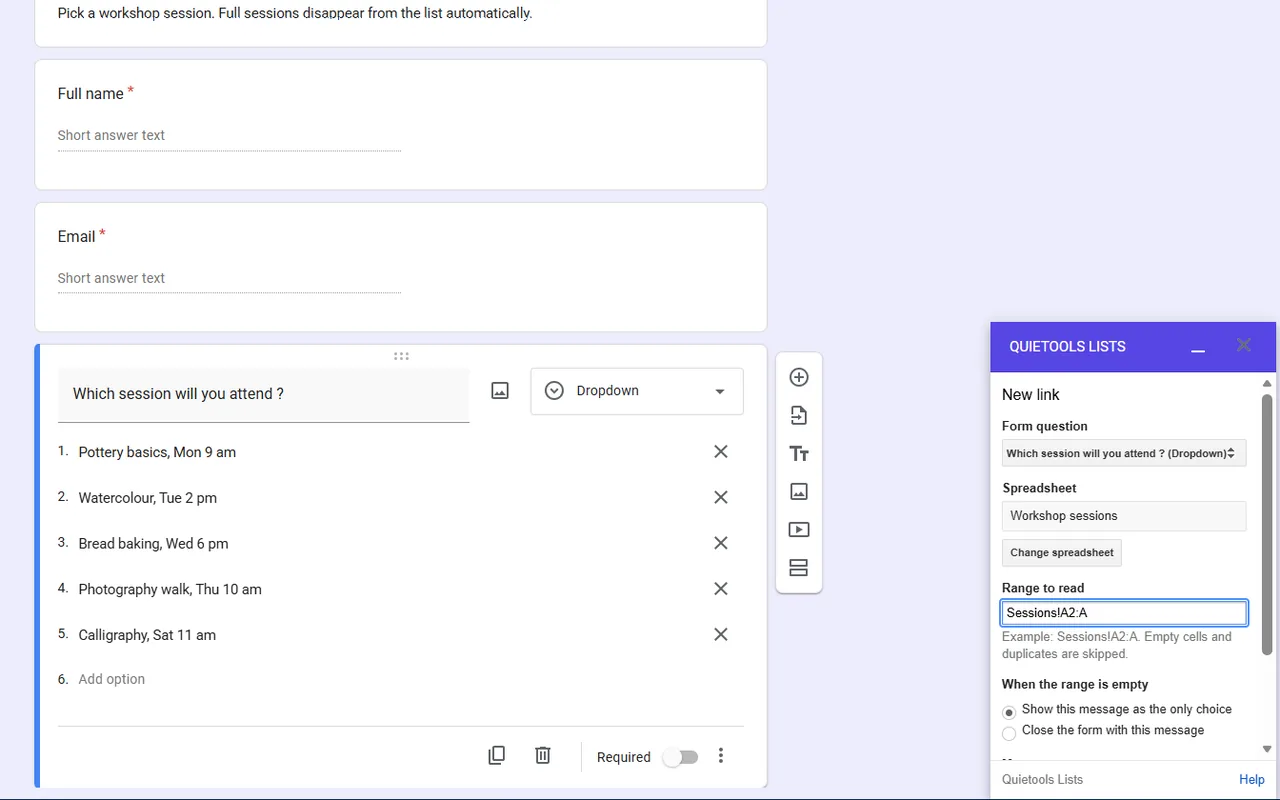
- Click Add a link and choose your question. Click Choose a spreadsheet and pick your file.
- In Range to read, type
Lists!A2:A. Click Continue: the preview shows how many choices the question has now, how many values the range holds, and the first ones. Click Replace the choices.
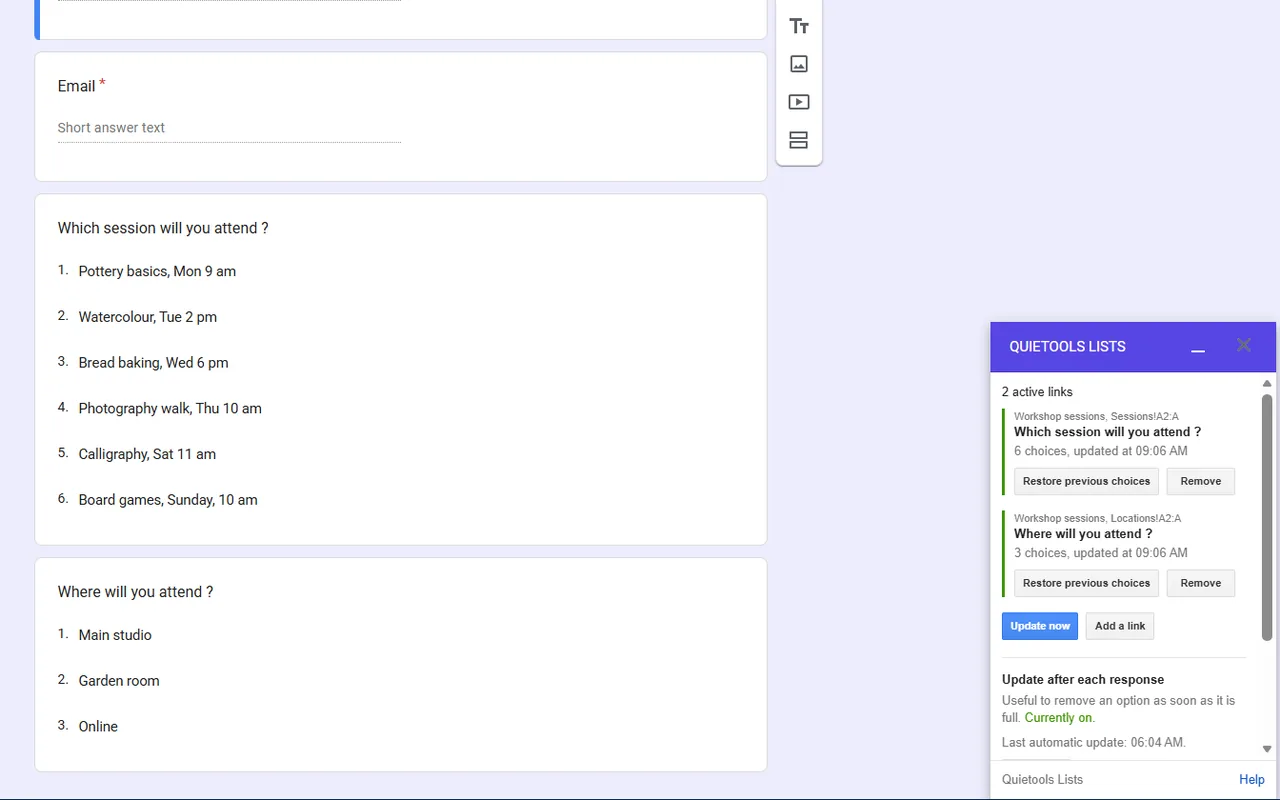
From then on, when you edit the spreadsheet, click Update now in the sidebar and the question follows. The add-on doesn’t update on a schedule: it updates when you click, or after each response with the full version, which also lets you link several questions, each to its own column.
Good to know
- The order of the choices is the order of the column. Sort the spreadsheet, or read a sorted column built with the formula above.
- Responses keep the text they were given. If you rename a value in the spreadsheet, earlier responses keep the old name.
- Only questions with a list of choices can be filled: dropdown, multiple choice and checkboxes. Grids and linear scales can’t.
- One list for several forms: give each form its own link, or its own script, all reading the same column.
- A question that depends on the answer to another one, such as a country then a city: Google Forms can’t filter a question from an earlier answer on the same page. Use sections instead: one city question per country, and Go to section based on answer on the country question.
Another guide: a sign-up form with limited places, where full sessions disappear.